Spin It with CSS: JavaScript-Free Carousels
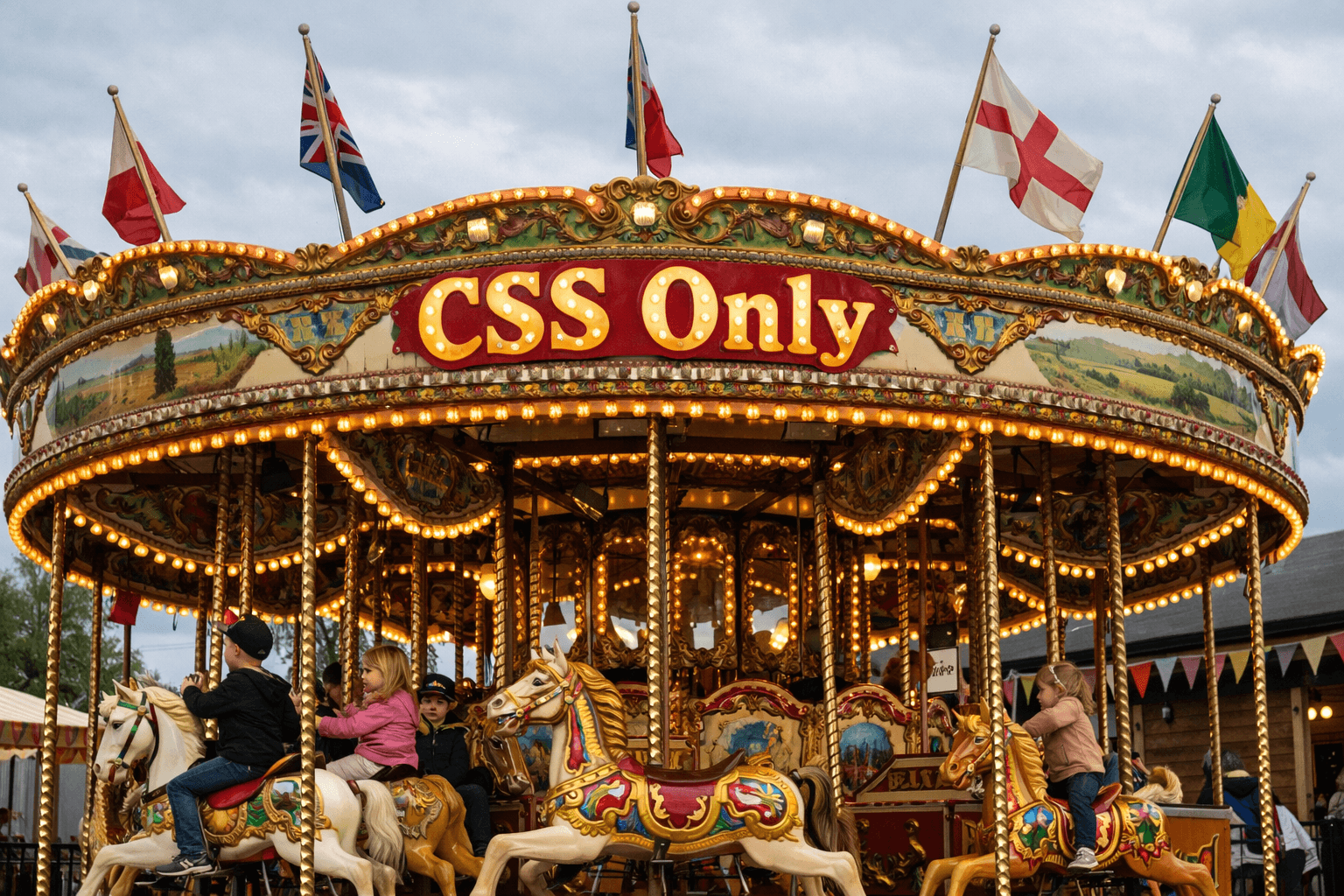
Tech demo: CSS Carousel
The theme park visitor in me loves nothing more than to talk about rides and attractions throughout the world. But in web development for the past 20 years, few things have given me more irritation than image carousels. Marketing teams cannot get enough of them, and I will admit they have their place.
Every framework does them differently, and sometimes they can be a real pain to make work on mobile devices. Sometimes people want to put images, sometimes copy, sometimes video, sometimes combinations of things, and it was always a JS nightmare.
Life is a carousel. It goes up and down. All you gotta do is just stay on.
Pharrell Williams' quote above, despite its potentially depressing undertone, is quite an apt metaphor when working in the ever-evolving world of web technology. The tech changes so fast that, even ignoring the AI boom of late, keeping up in all areas is impossible. This year, however, in the land of CSS, there have been some less prominent but really awesome steps forward.
The classic image carousel I mentioned above: I have implemented it in many different frameworks and libraries over the years, and, if I am honest, I was not truly happy with any of them. I've written them in vanilla JS, CoffeeScript (we all make mistakes), Foundation, and React, and getting the basic implementation (the MVP, if you will) working is fairly straightforward. But chances are you have either bundled in a heavy client-side library or written a big chunk of JS and CSS by this point. Then come all the complications I mentioned earlier, and you find yourself (despite your best intentions) hacking in nasty fixes to your once-fine Louvre-esc gallery.

So what has CSS done?
With a combination of properties and selectors, it is now possible to produce a basic web page Carousel that accepts HTML DOM nodes without writing a single line of JS.
Through a combination of scroll-snap-type , scroll-snap-align, scroll-behavior properties coupled with the new ::scroll-button and ::scroll-marker-group selectors, you can now use the browser's native behaviour to render the dreaded Carousel with just CSS and HTML.
We start with the basic HTML markup:
<div className={styles.carousel}>
    <figure class="slide">
        <img class="image" src="some-image.jpg" alt="" />
        <figcaption class="caption">some title</figcaption>
    </figure>
    <figure class="slide">
        <img class="image" src="some-image.jpg" alt="" />
        <figcaption class="caption">some title</figcaption>
    </figure>
    <figure class="slide">
        <img class="image" src="some-image.jpg" alt="" />
        <figcaption class="caption">some title</figcaption>
    </figure>
</div>
HTML markup for Carousel
Obviously, you can choose whatever semantic DOM elements take your fancy, but I really hate using <li> for anything that is not a bullet list of text. The carousel essentially needs a wrapping block element with one child for each slide.
Then we move onto the all-important CSS:
.carousel {
  anchor-name: --carousel;
  aspect-ratio: 16 / 9;
  border: 2px solid green;
  display: flex;
  gap: 8px;
  margin: 0 auto;
  max-width: 512px;
  overflow-x: scroll;
  position: relative;
  scroll-behavior: smooth;
  scroll-snap-type: x mandatory;
  width: 100%;
}

.slide {
  align-items: center;
  display: flex;
  flex-direction: column;
  flex: 0 0 100%;
  justify-content: space-between;
  margin: 0;
  scroll-snap-align: center;
  width: 100%;
}
Carousel css code
This will give you the basics of a Carousel - where you can scroll or swipe to navigate between slides, snapping each slide to the centre of the view (in this case, the whole of the view).

Everything you have seen here is supported in all major modern browsers, so you can get started today! For those supporting IE, you can always fall back on JS with Modernizr.js or equivalent.
Data on support for the mdn-css__properties__scroll-snap-align feature across the major browsers from caniuse.com.
Data on support for the mdn-css__properties__scroll-snap-type feature across the major browsers from caniuse.com.
But we can do more...
What we have above is nice, but it does not really look like an image carousel. There is no indication that you can change the slide or the total number of slides. So here we go with some more CSS...
.carousel {
  &::scroll-button(*) {
    aspect-ratio: 1;
    background: var(--color-green-grass);
    border: 0;
    font-size: 2rem;
    opacity: 0.7;
    position: absolute;
    position-anchor: --carousel;
    top: 50%;
    transform: translateY(-50%);
    cursor: pointer;
    width: 32px;

    &:hover,
    &:focus {
      filter: brightness(1.3);
    }

    &:disabled {
      cursor: not-allowed;
    }
  }

  &::scroll-button(left) {
    clip-path: var(--clip-path-arrow-left);
    content: "";
    left: anchor(--carousel left);
  }

  &::scroll-button(right) {
    clip-path: var(--clip-path-arrow-right);
    content: "";
    right: anchor(--carousel right);
  }

  &::scroll-marker-group {
    display: flex;
    gap: 24px;
    justify-content: center;
    justify-self: anchor-center;
    position: absolute;
    position-anchor: --carousel;
    top: calc(anchor(--carousel bottom) + 8px);
  }
}

.slide {
  &::scroll-marker {
    content: attr(data-title);
    width: 16px;
    height: 16px;
    background-color: transparent;
    border: 2px solid var(--color-green-grass);
    border-radius: 50%;
    overflow: hidden;
    text-indent: 16px;
  }

  &::scroll-marker:target-current {
    background-color: var(--color-grey-light);
    transition: all 0.7s linear;
  }
}
CSS code to add scroll markers and buttons
The key parts from the above code are ::scroll-button, ::scroll-marker-group and &::scroll-marker.
scroll-button
The scroll-button selector lets you style and position scroll buttons that have native browser support. Like the pseudo elements ::before and ::after they are not visible until you have them a content value ( in our case, content: ""; ). We use an anchor set on the carousel class to relatively position the buttons into the expected locations, and the rest of the code is visuals to style them as you see fit. I like clip-paths, but you could also add a character to the content attribute or chose anoher way to style them or even just leave them as the browser default.
scroll-marker-group
The scroll-marker-group is responsible for indicating the number of slides and the progress through them. The group wraps each ::scroll-marker defined on each slide. Each scroll-marker has a pseudo class :target-current that applies styles to the currently active slide's marker.
Compatibility
With these advanced selectors support is not there yet for Safari (and thus iOS) but it hopefully wont be long.
https://caniuse.com/mdn-css_properties_scroll-marker-group
Putting it all together
When you put all the parts together, you'll get a Carousel rendering with just CSS that supports touch and mouse events, and you can customise it quite well.
A live demo can be viewed on my design system under Carousel. You can enable and disable various features to see how it all works.

Accessibility
Now, while that might be pretty impressive, there are some accessibility concerns for the Carousel. The pseudo-elements like markers and buttons are not read by screen-readers and keyboard navigation is cumbersome at best. Sara Soueidan covers a lot of this in her blog article Are 'CSS Carousels' accessible? - and I highly recommend reading through as she raises valid points and beliefs on the direction of this element and the HTML/CSS spec.
In Conclusion
After carefully evaluating this innovative implementation, I am eager to see its future potential. While current limitations such as lack of cross-browser support and accessibility challenges prevent it from being production-ready, I am confident that, in time, features like this will significantly reduce the reliance on JavaScript for simple DOM tasks, paving the way for a more streamlined and accessible web.